Select New round to clear the picks and start again.

Select New round to clear the picks and start again.
Add a class list, choose who is present, and spin to pick a student. Each class keeps its own roster, round, photos, and display settings.
A first visit starts with Example class and 24 fictional names. Select Add class for your own roster, enter a class name, add the students, and select Save changes.
In Today, uncheck anyone who should sit out. This leaves the name in the class list. No-repeat turns is on by default, so an entry already picked in this round sits out too.
Select Spin in the wheel, or focus it and press Enter or Space. The reveal shows the selected student's name and photo when available. Choose Close to return or Spin again for another available student.
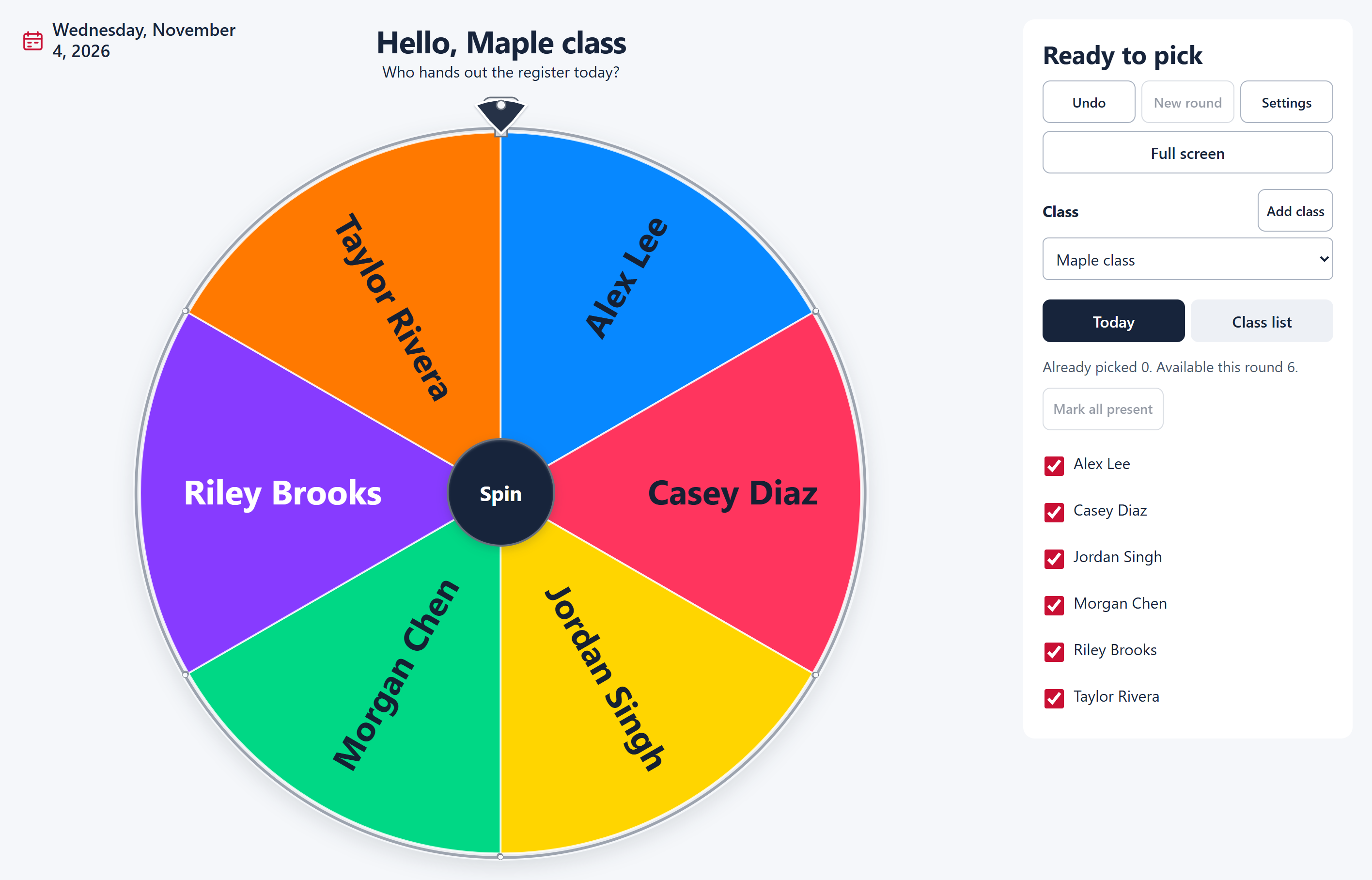
Use the Class selector to move between groups. Each class keeps its present choices, picks, photos, display text, and settings independently.
Select Add class beside the Class selector or in the header. On smaller screens, the header action is in More. The Class list editor opens with an empty class name and roster.
Enter a name of up to 80 characters. Add students and select Save changes to create the class. Cancel discards the draft and returns to the previous class. You can keep up to 20 classes in this browser.
When another class is open, a new class starts with its current sound, Quiet, No-repeat turns, and other playback choices. The new roster and display fields start empty.
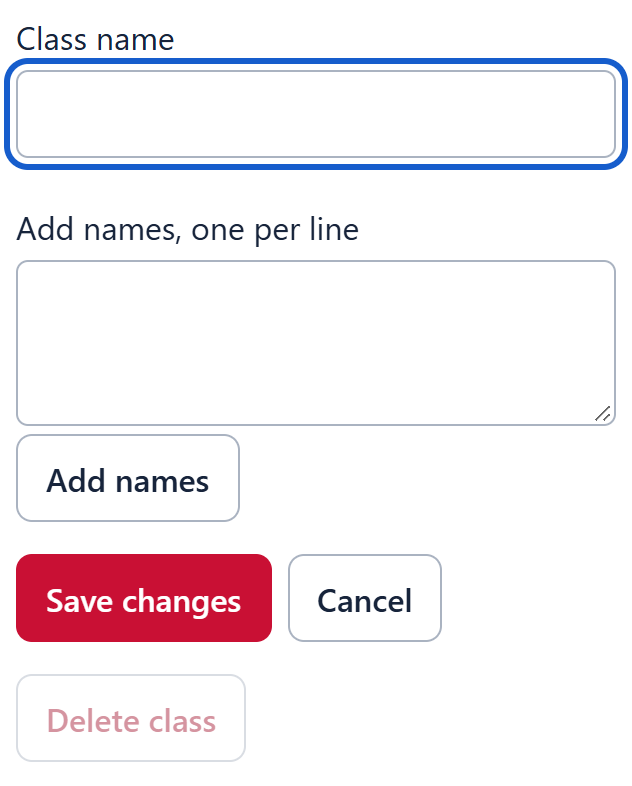
Choose the class, open Class list, edit Class name, and select Save changes. Renaming the class keeps its students, present choices, and picks. Cancel leaves the saved name unchanged.
Select a saved class from Class. The wheel restores that class's current round rather than starting a new one. Save or cancel any Class list draft before switching, opening Settings, or spinning.
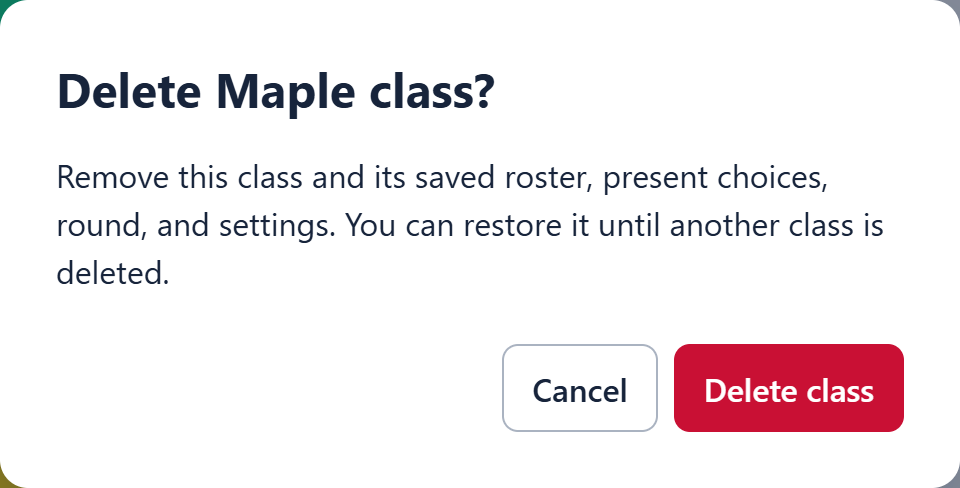
Open Class list and select Delete class. Read the confirmation naming the class. Delete class removes that class's roster, present choices, picks, images, and settings from the active class collection. Cancel keeps it.
Restore deleted class brings back the most recently deleted class, including its retained state. It remains available until you delete another class. At the 20-class limit, make room before restoring.
Deleting the last class leaves an empty picker, including after a reload. Add class starts a new empty roster. The example list does not silently replace a class you deleted.
Class list edits the saved roster. Today changes who is available for picking without deleting students.
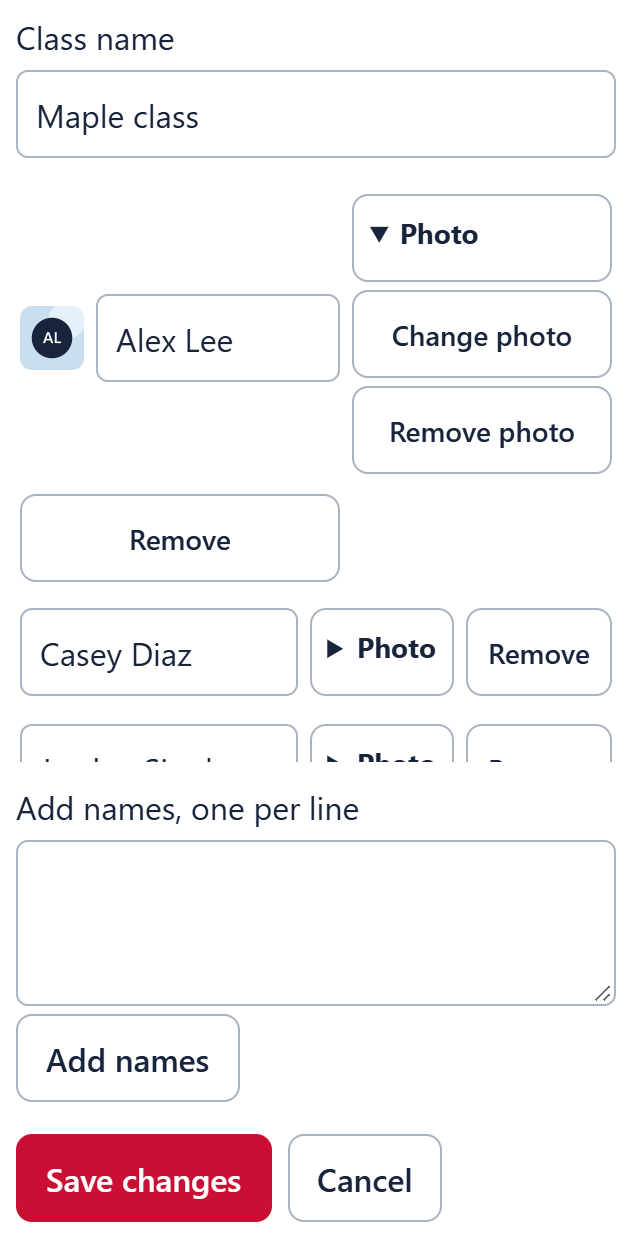
Paste names into Add names, one per line, then select Add names. The names append to the draft. Blank lines are ignored. Keep each name to 80 characters and each class to 500 students.
You can paste another group of names before saving. Save changes also adds any nonempty names still in the paste field. Review the rows first so the same student is not entered twice.
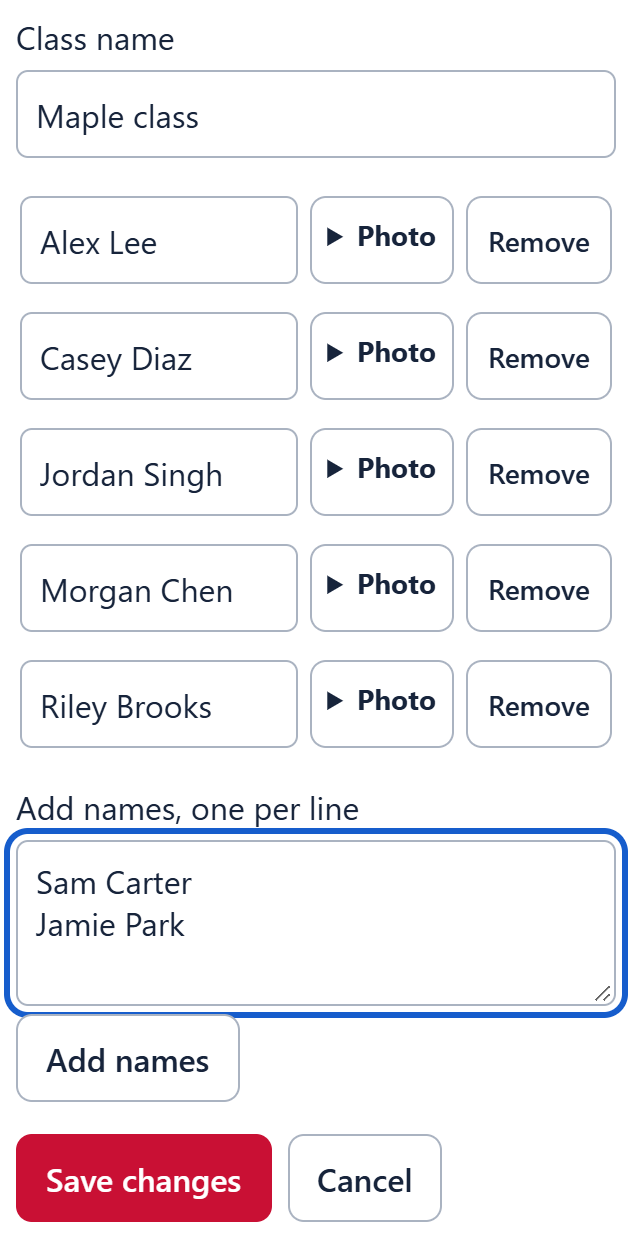
Edit the name directly in its row. Remove beside that row deletes the student from the draft roster. Save changes commits the edits. Removing a row also removes that student's picks from the retained round history.
Students with the same displayed name remain separate entries. Renaming an existing row preserves its photo, present choice, and picked status. Deleting a row and adding the name again creates a new entry.
Save changes stores the class name, roster rows, and draft photo associations. Cancel discards those draft changes. An invalid name or oversized roster leaves the draft available for correction.
Unsaved edits block spinning and other actions that would leave the editor. Save or cancel them rather than reloading. A browser warning may also appear if you try to leave with unsaved changes.

A student must be checked in Today to be available. With No-repeat turns on, that entry must also be unpicked in the current round.
In Today, uncheck a student to leave them out of picks. Check the student again when they return. Mark all present checks every student without changing the saved roster or clearing the round.
Present and Already picked are separate states. An unpicked student can join partway through a round. Unchecking and rechecking an already picked student does not give them another turn while No-repeat turns is on.
These checkboxes control this picker. They are not a dated attendance record, and their choices remain saved until you change them.
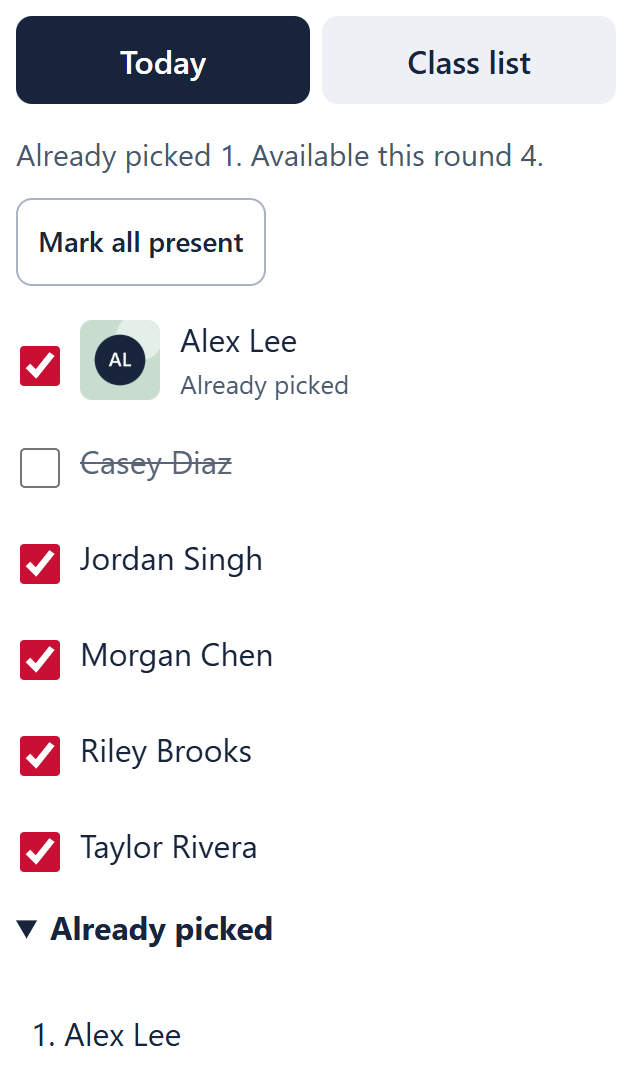
Open Settings and use No-repeat turns. When it is on, picked entries stay out until New round clears the picks. Turn it off to let every present entry take part on each spin, including students already picked.
Changing this setting does not erase the pick history. Already picked lists completed picks in order. Its count can exceed the number of students when repeats are allowed. Available this round counts entries eligible for the next spin.
During a spin, the hub says Spinning and another spin is disabled. The winner reveal shows the full name, any available student photo, and the winner message. The selected name also remains in the class panel after you close it.
Close keeps the pick. Spin again closes the reveal and picks from the students still available. If no entries remain, Spin again is disabled. Close the reveal and select New round when you want to start again. The wheel does not silently reset the round.
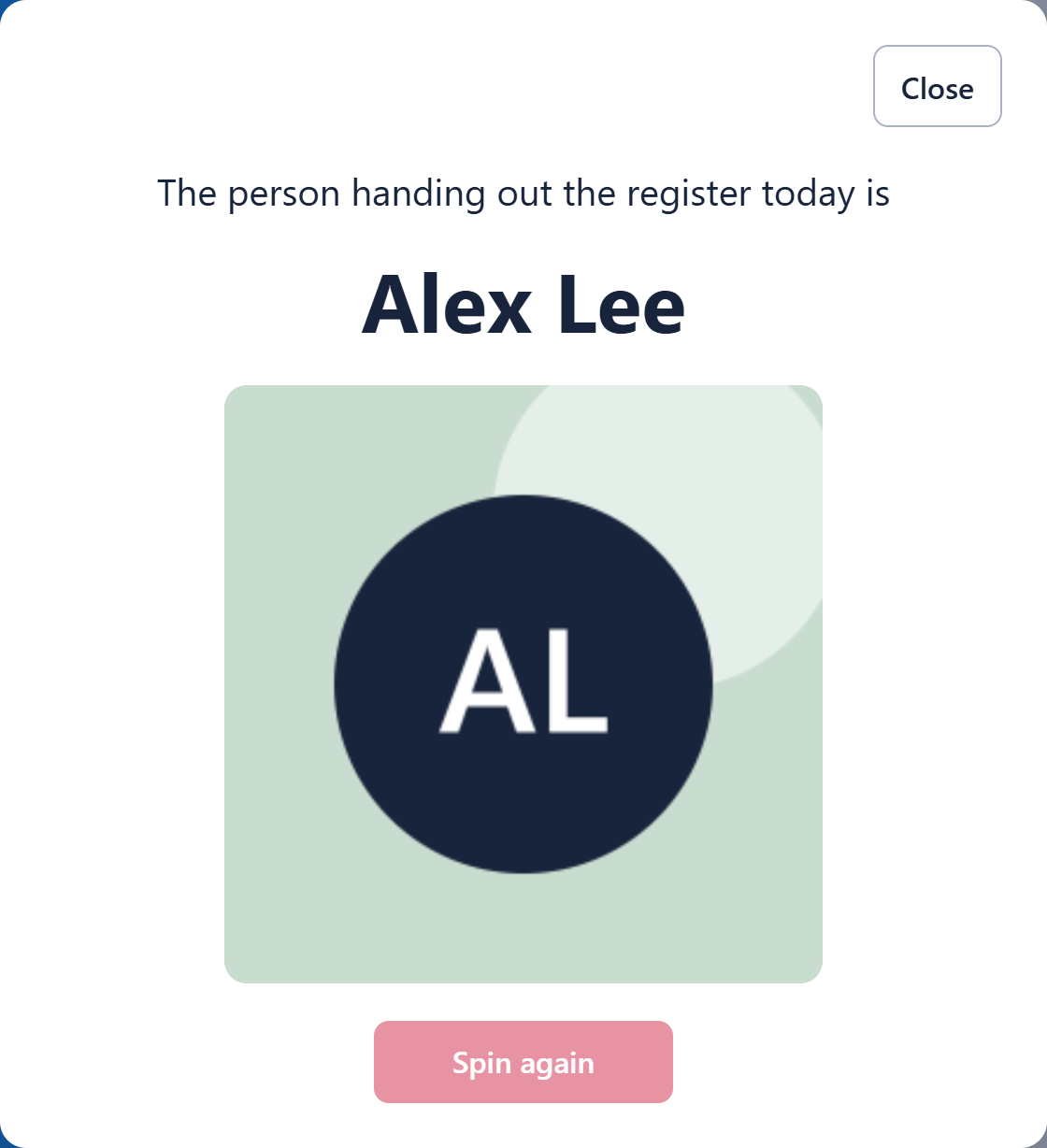
Undo reverses the last reversible class action, including a pick, present toggle, Mark all present, saved roster edit, New round, display edit, or center-image change. Draft student photos become part of the saved roster edit.
Each class keeps up to 10 Undo steps. Undo restores that class's content and round state. Sound, Quiet, No-repeat turns, and other playback settings keep their current values. Use Restore deleted class for a deletion. Imports do not bring an Undo history.
Select New round to clear this class's picks and selected result. It keeps the roster, photos, display text, settings, and present choices. Absent students stay unchecked.
If no one is available, first check Today. An empty roster needs names in Class list. An all-absent roster needs at least one checked student. An exhausted no-repeat round needs New round. A round can hold up to 2,000 completed picks. Start a new round if you reach that limit.
Names remain readable with or without photos. Student photos can appear in Today, on wheel slices when there is enough room, and in the selected-student reveal.
In Class list, open Photo beside the student's name. Choose Add photo, or Change photo for an existing image, and select a file. Remove photo clears the photo from the draft while keeping the student.
Photo ready means the draft has the image. Select Save changes to keep its association with the student. Cancel drops the draft association. Remove beside the entire student row is a separate action that removes the student.
Open Settings and find Center image. Add image chooses a file. Change image replaces it, and Remove image clears it. These actions save for the current class without the Class list Save changes button.
Spin and Spinning stay visible over an image-backed hub. The center image does not change which student is picked. Undo can reverse a center-image change.
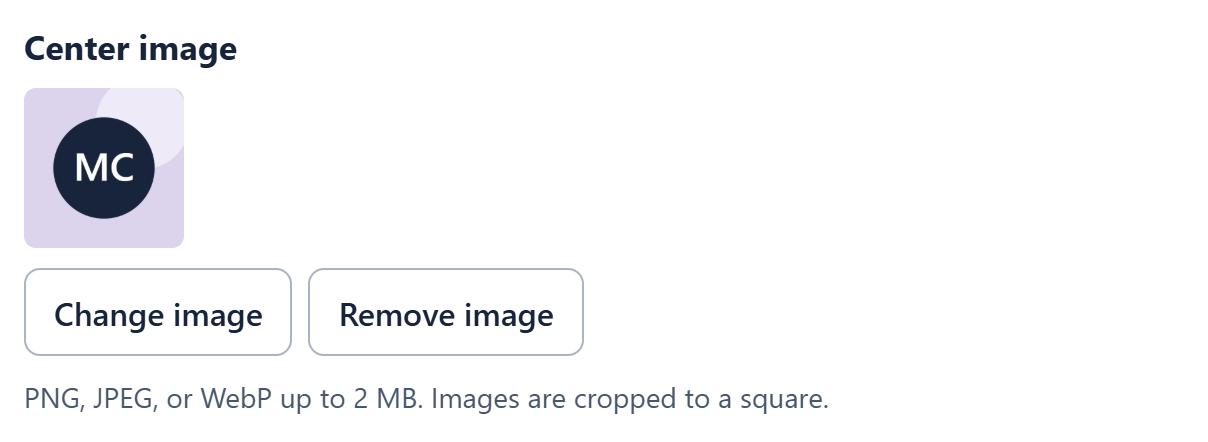
Use a PNG, JPEG, or WebP file up to 2 MB, with neither side longer than 8,192 pixels. The picker crops the center to a square and stores a 256 by 256 image. There is no crop-position editor.
If a file cannot be opened, check its format, size, and dimensions or try another valid image. If image storage fails, the current image is kept. An unavailable stored image gives a warning, but names remain usable and picking can continue.
A wheel slice may omit a photo or shorten its label when space is tight. The full student name remains available in Today and the winner reveal.
Open Settings near Undo and New round, or use Customize in the header. When a heading is visible, selecting it or its Edit action opens the same Settings dialog.
Heading or question accepts up to 160 characters. Note accepts up to 300. Leave either field blank to hide that text. They appear above the wheel in normal and full screen views.
Text changes save as you finish a field. Close or Escape also commits current display edits. In the heading field, Enter finishes the edit. Settings does not have the roster editor's Save changes and Cancel workflow.
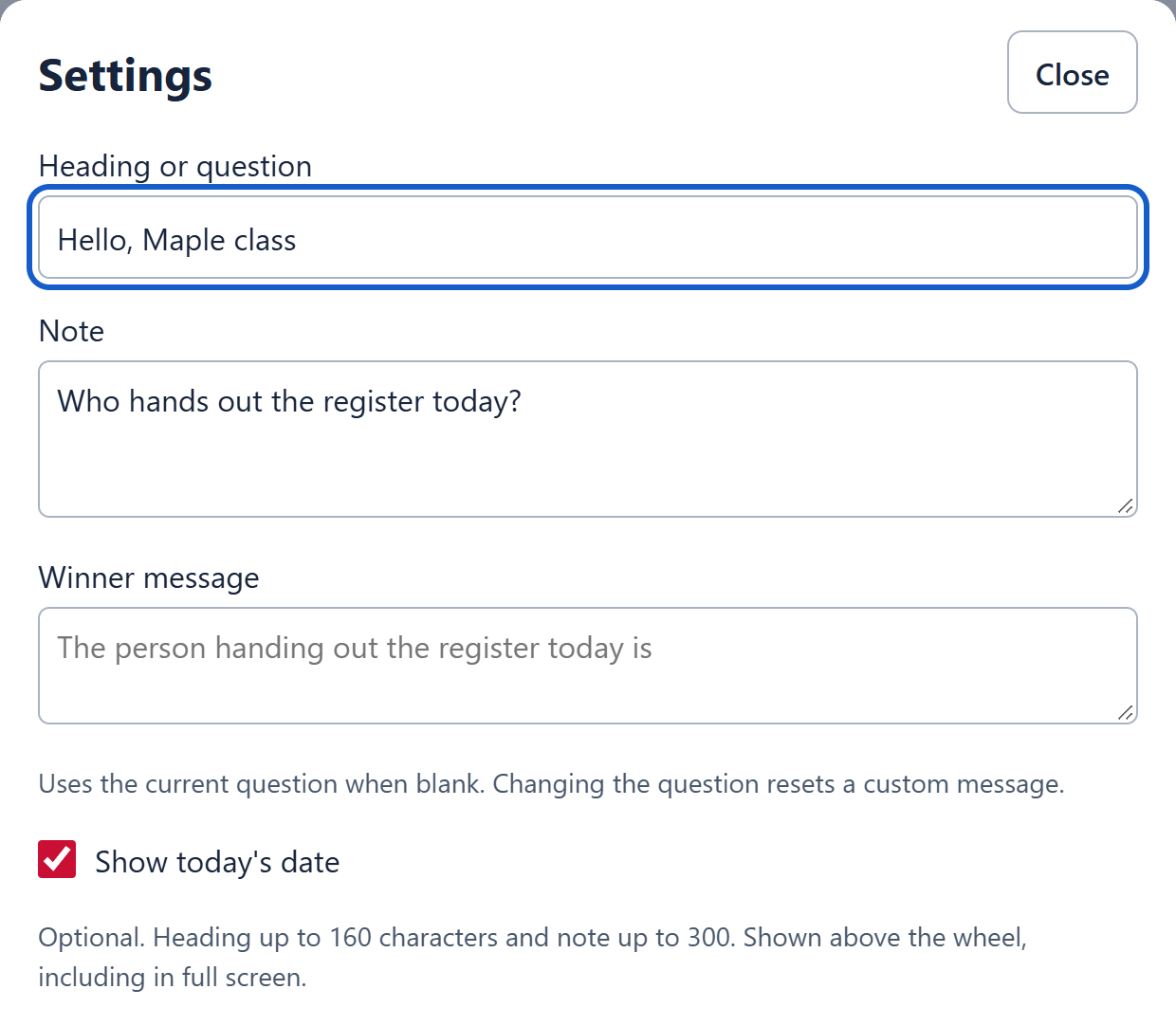
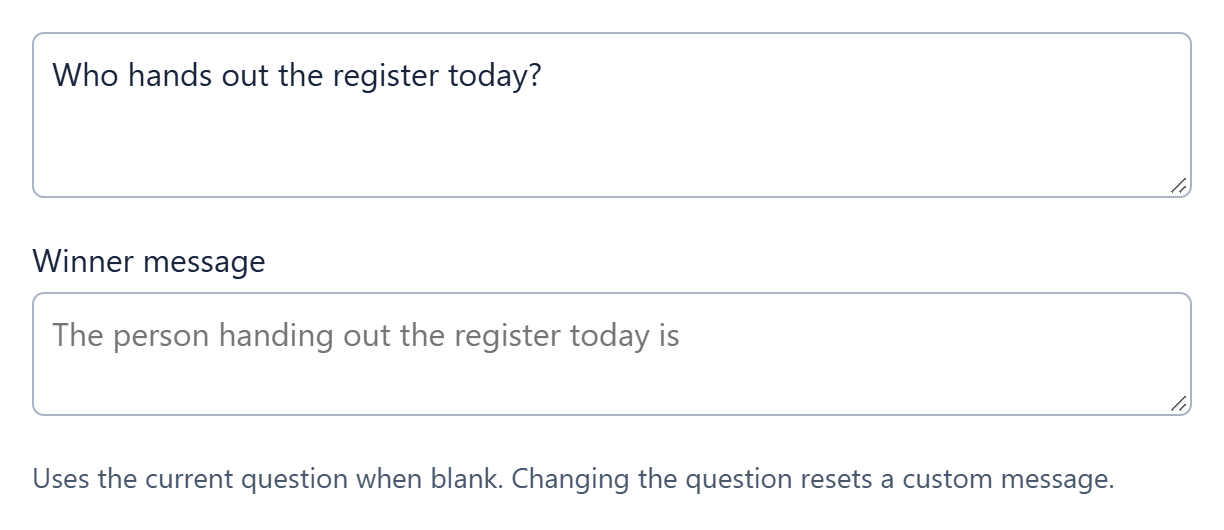
Winner message accepts an optional custom line of up to 300 characters above the selected name. Leave it blank to use the current question. The picker uses Note first. If Note is empty, it uses a heading ending in a question mark. Without either, it uses The chosen student is.
Questions in the form Who hands out ...? become The person handing out ... is. This works for supplies, the register, or another task entered in that form. Other question patterns appear as entered. The picker does not rewrite general questions into statements.
Changing the question used for the reveal clears the old custom message. For a custom line on a new task, change the question first, then enter the line you want. Each class keeps its own display text.
Turn on Show today's date to display the current local date in US format, including the weekday, month, day, and year. It updates while the page is open and when you return to it. Turn the option off to hide it.
This is today's date from the viewing device, not a custom date field or a schedule. Heading, note, and date are optional, and a new class starts without them.
Settings apply to the active class. You can adjust them without clearing its picks or changing who is present.
Mute in the header switches this class's Sound off. Unmute switches it on. The Sound checkbox in Settings controls the same choice. Volume runs from 0 to 100 and applies to ticking and winner sounds. Volume 0 is silent even when Sound is on.
Audio starts from the Spin action, not when the page loads. If sound cannot start, check the browser's sound settings, Sound, Volume, and Quiet classroom. Quiet suppresses audio even if the saved Sound choice is on.
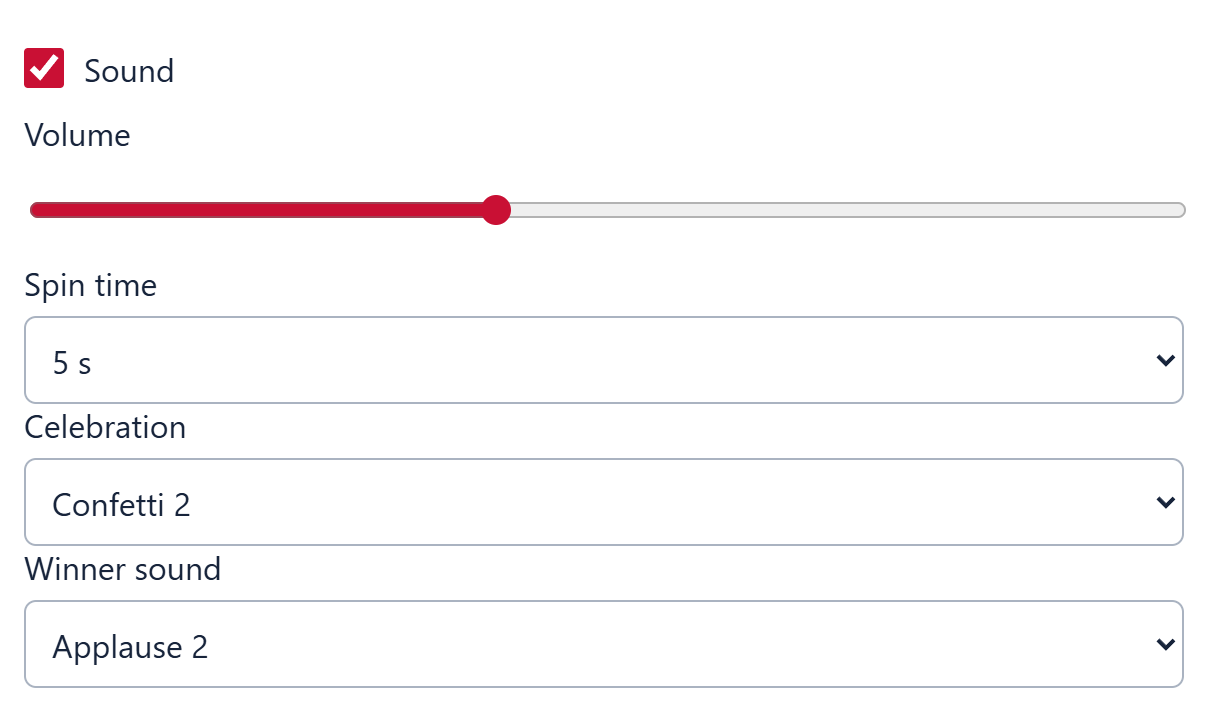
Spin time offers 1 through 10 seconds. The initial setting is 5 seconds. It changes the animation, not the eligible students or their chances. Reduced-motion settings can shorten the visible movement.
Quiet classroom is off by default, with the Bright wheel colors. Turn it on for soft pastels without ticking, winner sounds, or celebrations. The selected name and photo reveal still appear.
Quiet is the teacher wheel's color control. Turn it off to return to Bright. It keeps your saved Sound and Volume choices, so an explicit mute or Volume 0 still applies afterward. Entering Full screen does not turn Quiet on.
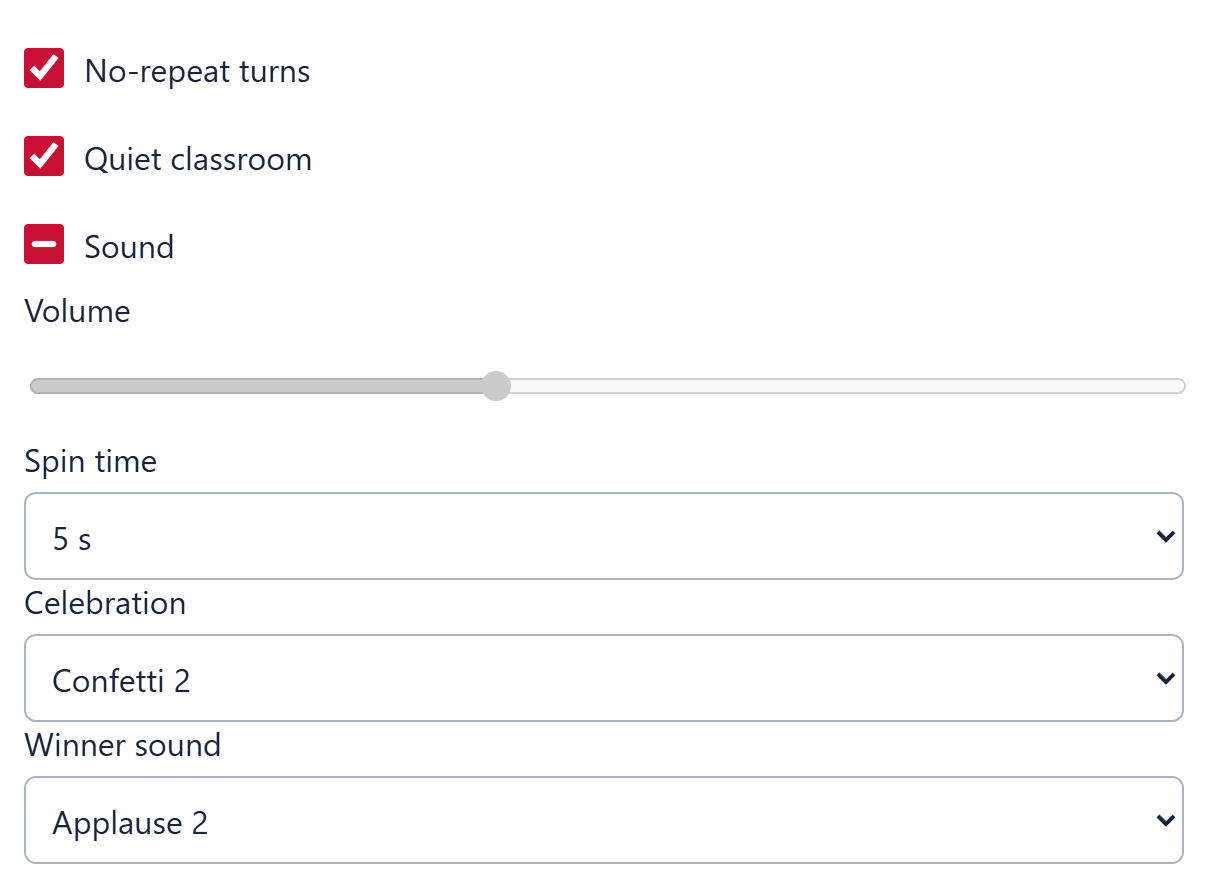
Celebration offers Confetti 1, Confetti 2, Fireworks, Stars, Color burst, and Off. The initial choice is Confetti 2. Off removes the visual effect while keeping the winner reveal.
Quiet classroom and the device's reduced-motion preference suppress celebrations. Closing the reveal stops its feedback. Selecting an effect does not play a separate preview. Make a spin to try it.
Winner sound offers Applause, Applause 2, Ta-da, Chime, and Off. The initial choice is Applause 2. Off silences the result sound while leaving spin ticking available when Sound is on, Volume is above 0, and Quiet is off.
There is no separate sound-preview button in the teacher settings. Try a spin to hear the selected sound. Sound off, Mute, Volume 0, or Quiet also silence the winner sound.
Full screen focuses the display on the wheel, optional heading, note, date, and selected student. Setup controls stay outside the projected view.
Use Full screen in the class panel or the matching header icon. The hub remains clickable, and the selected-student reveal can appear over the wheel. Heading and note edits stay in Settings outside full screen.
Close the winner reveal, then use Escape to leave full screen. After an exhausted round, return to the normal controls and select New round.
If the browser refuses full screen, the picker stays usable in its normal layout and shows a message. This action does not change the class, present choices, round, or Quiet setting.
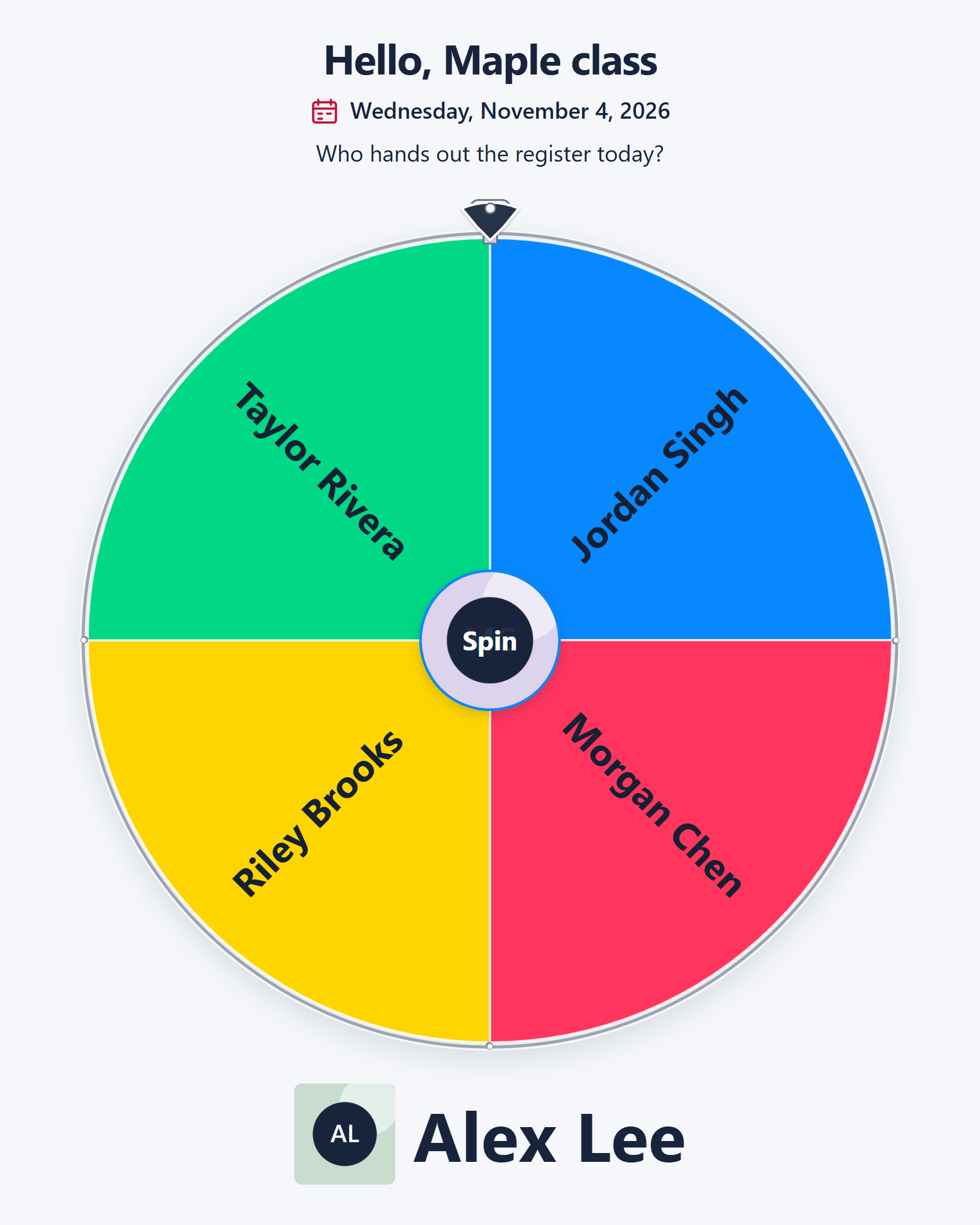
Saved class changes stay in this browser on this device when storage is available. A class backup is the way to move them to another browser or device.
| Action | What it does | What it keeps | Keep in mind |
|---|---|---|---|
| Save changes | Commit a Class list draft. | The class name, student rows, and their photo associations, with retained present and picked states for existing rows. | Cancel discards the draft. Browser storage must work for the saved class to survive leaving the page. |
| Download classes | Keep a portable backup of every active saved class. | Rosters, available photos, center images, present choices, picks, display text, and settings. | The file excludes Undo steps and the deleted class awaiting Restore. Missing images are reported. |
| Import classes | Add class copies from a teacher backup. | The imported class content, round, images, display text, and settings, while keeping existing classes. | Copies start without Undo history. The total must fit within 20 classes. |
| New round | Clear the active class's picks and selected result. | The roster, photos, present choices, display text, and settings. | It does not mark absent students present or clear other classes. |
A class backup contains student names, photos, picks, and any text you entered. Keep or pass on that file only when you intend to share those contents.
Finish Class list edits, then use the header download icon labeled Download classes. More also offers Download classes in the compact header. The file is named wheelysuite-classes.json and contains all active saved classes.
Available student and center images are included. If some stored images cannot be read, the backup leaves those images out and reports it. Class lists and picks are still included, and the saved classes in the browser are not rewritten by that partial export.
Download another backup after changes you need to keep. An old file does not update itself.
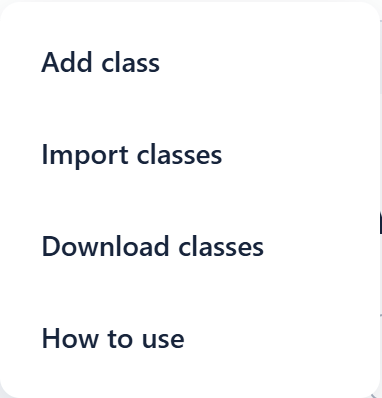
Select Import classes in the header or More, then choose an intact teacher JSON backup. Successful import adds new class copies without replacing the classes already here. If an imported class name is already used, its copy gets a numbered name.
Current backups include images. Older version 1 teacher backups also load. A generic wheel file from another tool is not a teacher class backup. The file must be no larger than 64 MiB, and the combined collection must fit within 20 classes.
Invalid files, damaged image data, missing required backup images, and image-storage failures show an error. Existing classes remain available. Imported copies have no Undo history.
The class collection and photos are saved in this browser, not synced between devices. Reopening the page in the same browser and profile restores available saved data. Sharing the page address does not transfer a roster.
Private browsing, browser data clearing, blocked storage, or storage limits can prevent later recovery. If saving is unavailable, keep the page open and download classes while the current state is available. A successful on-page change does not guarantee it was written to browser storage.
The picker allows up to 32 MiB of stored image data. Browser storage can fill sooner. If an image cannot be saved, the existing association is kept. Removing one visible image may not free space immediately, since images needed for Undo or a restorable class can still be retained.
Use New round to clear only this class's picks. Use Class list to remove individual students, or Delete class to remove a whole class. Restore deleted class is the recovery action for the last class deletion.
The teacher picker has no Reset all saved data or Share link control. Clearing this site's data through the browser can also remove saved data for other WheelySuite tools. Download what you need before using the browser's data-clearing controls.
Check No-repeat turns in Settings. When it is off, any present entry can be picked on each spin. Also check for a duplicate roster row. Identical names are separate entries, so entering the same student twice creates two chances.
No. It clears picks and the selected result while keeping the present choices. Use Today to check a returning student, or Mark all present if everyone should take part.
Finish or cancel a Class list draft, wait for a spin or file operation to finish, and check that the class has an eligible student. If everyone present has already been picked with No-repeat turns on, close the reveal and select New round.
No. Each eligible roster entry has the same chance on that spin. The browser selects the entry using its cryptographic random source before the animation. Spin time, center images, colors, and effects change the presentation rather than the selection.
Check Note and Winner message in Settings. A custom Winner message takes priority. When it is blank, Note is used before a heading ending in a question mark. Changing the question used for the reveal clears an old custom message.
Check Sound or Unmute, set Volume above 0, and turn Quiet classroom off. Winner sound must also be something other than Off for the result audio. Start a spin to activate browser audio, and follow any browser sound warning.
