
Sound could not start. Check your browser sound settings or keep spinning muted.
A random name picker for your own list
A wheel of names picks one entry at random from a list you provide. Use this wheel picker for meeting order or classroom turns, or as a randomizer for games, tasks and everyday choices.
How to use the spinner wheel
Add your entries
Replace the sample list in Entries with your own names or choices, one per line. Check that each person or option appears as many times as you intend.
Spin the wheel
Select Spin in the center. The pointer marks the chosen entry, and the result shows its full text.
Decide who stays in
Spin again to make another pick. For a round where each entry gets one turn, turn on Remove each winner after picking before you continue.


What can you use a wheel of names for?
For a classroom activity, enter each student once and remove winners as you go so everyone gets a turn. In a meeting, use the same approach to pick the next presenter.
The entries can also be things to do. Add game challenges, discussion topics or a shortlist of activities, then spin to choose the next one. Set the list before starting, and decide whether a picked option should stay available for another turn.
Set up and edit your list
Build your wheel of names in Entries, or use Advanced when individual entries need different settings. The number beside Entries shows how many entries can be picked next.
Find the wheel controls
Use Customize for appearance, sound and motion. On wide screens, New, Open, Save and Share link appear directly in the header. On narrow screens, open More to find those actions. Download and Full screen sit at the end of the header. Other tools opens the other wheels.


Edit, shuffle or clear entries
Enter one choice per line. Editing the list or using Shuffle starts a fresh round. Shuffle preserves entry details and weights. Clear entries empties the list and round. Undo restores the previous state.
Blank lines and spaces at the ends are ignored. A list can contain up to 500 entries, each up to 80 characters. Remove duplicates is unchecked on new wheels, so repeated lines remain separate choices unless you turn it on. Changing this option starts a new round.
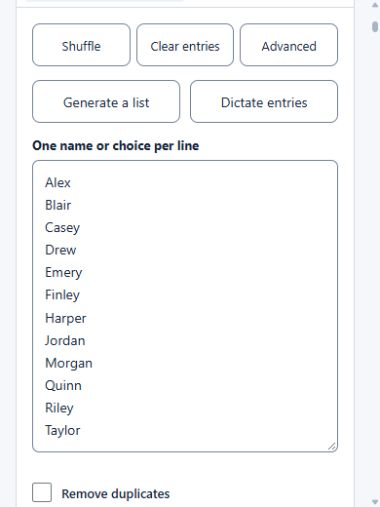
Generate a draft list
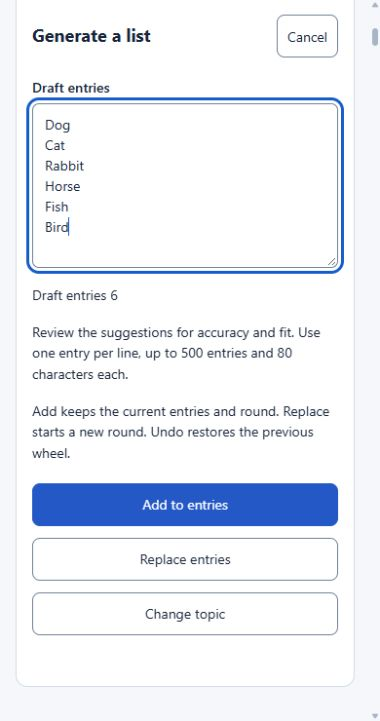
In Entries, select Generate a list. Enter a topic of up to 300 characters, such as animal names or game prompts. Choose 1 to 100 suggestions, then select Generate. Only the topic and requested count are sent for generation.
Review and edit Draft entries before using them. Use one entry per line, up to 500 entries and 80 characters per entry. A draft may contain fewer suggestions than requested.
Add to entries appends the draft while keeping the current entries, settings and round. Replace entries uses fresh rows and starts a new round, clearing Results and round removals. New rows start included at weight 1. Back leaves the replacement confirmation without applying it. Undo restores the previous wheel.
Cancel closes the panel and discards the draft without changing the wheel. Wait for a spin to finish and stop automatic spins before applying. If generation is not connected, enter or paste your list in Entries.
Dictate and review entries
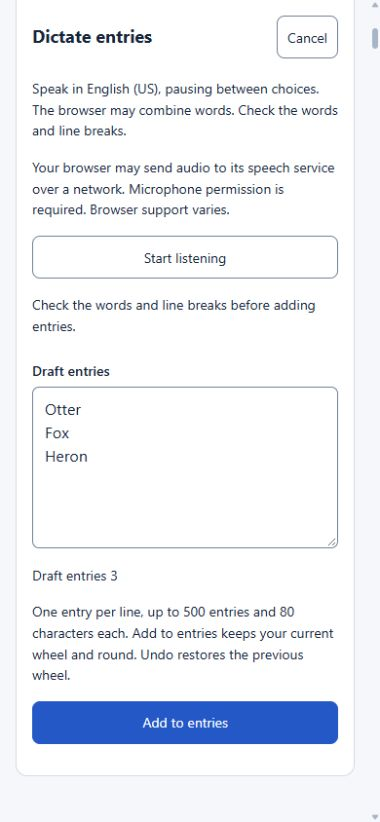
In Entries, select Dictate entries. Read the browser-service notice before selecting Start listening. Your browser may send audio over a network and needs microphone permission. Recognition uses English (US) and is unavailable in some browsers.
Say one choice at a time and pause between choices. Select Stop listening when you have finished. Each finished phrase starts a new line, but the browser may combine words. Review the words and split or join lines so each choice has its own line. Spoken commands are not interpreted by the wheel. Use up to 500 entries and 80 characters per entry.
Add to entries appends the reviewed lines to your wheel of names and preserves its settings, Results and round removals. New rows start included at weight 1. The combined list must stay within 500 entries. Undo restores the previous wheel. Cancel discards the draft without changing the wheel. Reloading or leaving the page also discards an unadded draft.
Listening stops after two minutes or when you hide the page. Review any finished phrases before starting again. Stop listening before editing or adding the draft. Wait for a spin to finish and stop automatic spins before using dictation. If the browser, microphone or speech service is unavailable, type or paste your list in Entries.
Add, edit or exclude entries
Use Add entry for a new row, then enter 1 to 80 characters. After editing text or a weight, leave the field to apply it. Uncheck Include to leave a row out without deleting it. Its Chance becomes 0.00%. Rechecking Include does not override winner removal, and New round does not recheck Include.
Duplicate copies text, color, image, weight and the Include setting. With Remove duplicates on, rename the copy for a separate segment. Delete removes the row. Undo reverses a recent entry action. Select Done to return.
New entries start included at weight 1. Add entry and Duplicate stop at 500 rows. Blank text or a weight outside the whole-number range of 1 to 10 is rejected.

Use the wheel with a keyboard
Use Tab and Shift+Tab to move between controls. With Spin focused, press Enter or Space to pick. There is no page-wide spin shortcut while you type in Entries.
When an Entries or Results tab has focus, use Left or Right Arrow to switch tabs. Home goes to Entries and End goes to Results. Escape closes menus and dialogs and stops automatic spins. It does not cancel a manual spin already moving.
In a dialog, Tab stays among its controls. Done or Close leaves your applied edits in place. Cancel, Close or Escape dismisses the reset confirmation before deletion starts; a reset in progress must finish.
Pick names without repeat winners
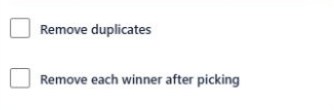
Remove each winner after picking is unchecked on new wheels. Turn it on to exclude earlier winners immediately, even partway through a round. Results stays intact.
Turning it off restores automatic removals only. New round restores round removals and clears Results. Give people who share a name distinct labels so you can tell whose turn it is.
Read and dismiss a result
Spin again makes the next pick. Close dismisses the popup. With automatic winner removal off, Remove picked entry excludes that one entry from the round and closes the popup. Undo brings it back.
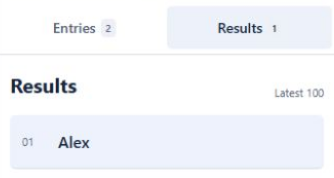
Results shows the latest 100 picks, newest first. Its count covers the whole round. Start a New round after 2,000 picks.
Use Undo for recent list and round actions
Undo reverses picks, list edits, Advanced changes and round resets. It can also restore the previous setup after New or Open. Up to ten steps are kept during a session, with the latest saved step available after reloading.
Ordinary Customize changes and deletion of saved copies are not covered by Undo. Reset all saved data cannot be undone.

How the random name picker selects a winner
When you select Spin, the wheel of names first draws an eligible entry using your browser’s cryptographic random number source. It then turns the selected segment to the pointer. The movement shows the result of the draw; it does not decide which entry wins.
Include settings, round removals and weights determine which entries can win and their chances. With an unchanged list of eligible entries and weights, earlier results do not favor a different name on the next spin. Duration, Speed and appearance settings change the presentation without changing those chances.
Try 10,000 sample picks
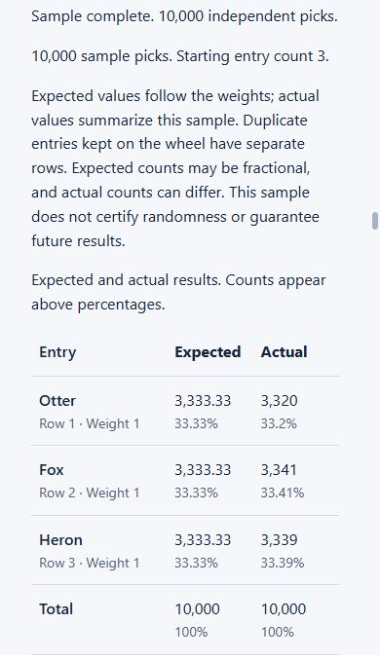
Draw 10,000 times from the entries currently eligible on your wheel of names, using their weights. Picks are independent, with replacement, so sample winners stay available. Automatic winner removal is not applied during the sample. Your wheel and round stay unchanged.
Include, duplicate and winner-removal settings determine the starting entries. Later edits or picks are not reflected. Run again for an updated sample.
Ready to sample the current eligible entries.
Expected values follow the weights; actual values summarize this sample. Duplicate entries kept on the wheel have separate rows. Expected counts may be fractional, and actual counts can differ. This sample does not certify randomness or guarantee future results.
| Entry | Expected | Actual |
|---|---|---|
| Total | 10,000100% | 10,000100% |
Set equal chances or use a weighted wheel
Each entry starts with weight 1. With equal weights, each available entry has the same chance on a spin.
A repeated name can mean extra chances. If Alex appears twice and Jordan once, the two Alex entries together have a 2 in 3 chance when all three weights are equal. Automatic winner removal takes out the picked entry, so the other Alex entry can still win.
Turn on Remove duplicates to keep one copy of each exact entry. Spaces at the start and end are ignored, but Alex and alex remain different entries. Check the list before drawing if each person should have one chance.
Alex 2 in 3Jordan 1 in 3
Set a weight and check its chance
For deliberate differences, open Advanced and set a whole-number Weight from 1 to 10. With just Alex at weight 2 and Jordan at weight 1, Alex has a 2 in 3 chance. Segment sizes follow the weights, and Chance shows each entry’s probability for the next spin. Equal chances resets the weights to 1.

Create and customize your wheel of names
Start with the entries you need, then open Customize to set the appearance, sounds and motion. Choose a theme, add your own images or adjust how the result appears. Use Advanced for individual entry colors, images and weights.
Changes apply as you make them. Done or Close returns to the wheel without reverting them. Colors and images do not alter chances.
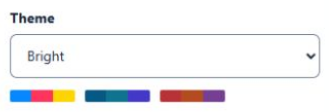
Choose a theme
Choose Bright, Ocean or Sunset. New wheels use Bright with no custom images. A whole wheel image covers segment colors until removed.
Put an image in the center
Center image places your picture on the Spin button. Remove center image clears only that picture.
Cover the whole wheel with an image
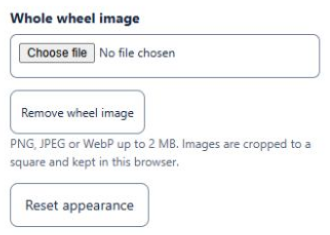
Whole wheel image places one picture behind the labels and segment boundaries. Remove wheel image restores the theme and individual colors.
Set an entry’s color or image
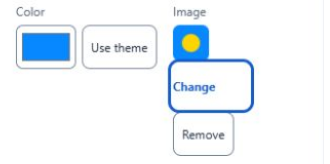
Advanced lets you set one entry’s Color or return it to the palette with Use theme.
Choose adds an image, Change replaces it and Remove clears it. Very narrow segments may not show the picture, so keep the entry text.
Prepare images and reset appearance
Use PNG, JPEG or WebP up to 2 MB and 8,192 pixels per side. Images are cropped to a square from the center, so keep important details near the middle.
Reset appearance returns to Bright and removes the center, whole-wheel and entry images, plus custom entry colors. Entries, weights and the round stay intact. Use an individual Remove control to clear just one image.
If an image is rejected, check its format, file size and dimensions, then try another file. An upload also needs browser storage to be available.
Choose sounds for spinning and results
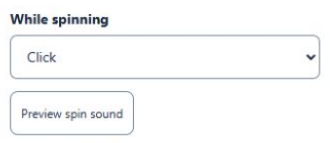
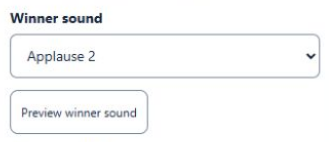
Choose sounds for your wheel of names in Customize. While spinning and Winner sound are separate choices. New wheels start with Click during the spin and Applause 2 after a pick. Opening a saved wheel keeps its saved choices.
Pick a built-in sound or turn one off
While spinning offers Click, Drum roll, My audio and Off. Click follows pointer crossings. Drum roll continues through the spin.
Winner sound offers Applause, Applause 2, Ta-da, Chime, My audio and Off. The two applause options are different recordings. Off silences only the selected stage.
Preview, mute and adjust the volume
Preview plays without making a pick. Its button becomes Stop preview. Starting another sound preview or closing Customize stops the current one.
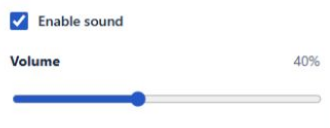
Enable sound and Volume control all wheel audio. Sound starts enabled on new wheels, with Volume at 40%. The range is 0 to 100%. Header Mute preserves your sound choices. Unmute restores 40% if volume was zero.
Audio starts from a spin or preview, never on page load. If preview fails, enable sound, raise the volume and choose something other than Off. Check browser sound settings or try another file.
Upload, replace or remove your audio
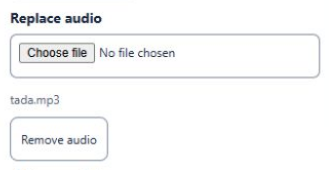
Upload separate spin and winner files. My audio is selected after upload. Use MP3, WAV, Ogg, M4A or WebM up to 5 MB that the browser can play.
Custom spin audio plays once until the track or spin ends. Its preview lasts up to three seconds. Winner audio plays once for up to 30 seconds. Both use normal speed and fade out.
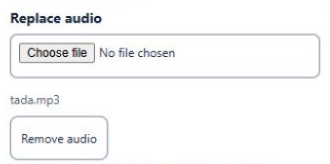
Replace audio changes the file. Remove audio detaches it without changing entries or the round. Removing selected My audio switches spin sound to Click or winner sound to Applause. If a file is missing, upload one or choose a built-in sound.
Download includes uploaded audio. Share links do not.
Set the pace and result display
Use Customize for the winner message, celebration and motion settings. These change how a pick is presented, not its probability.
Switch between 2D and 3D
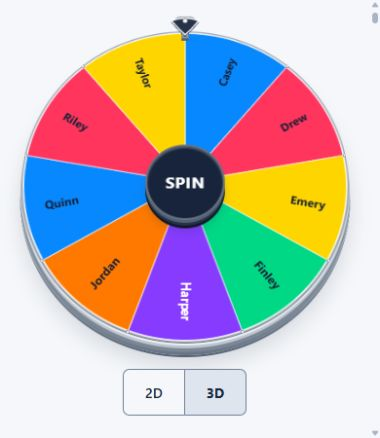
Use the 2D and 3D controls below the wheel to change the view. Wait for a spin to finish, and stop automatic spins before switching. Exit full screen to change views.
Both views use the same entries, weights and selection chances. The page starts in 2D and returns to 2D when reloaded. Your view choice is not included in saved wheels, downloads or shared links.
Write the result heading and choose a popup
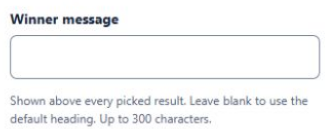
Winner message accepts up to 300 characters above every popup result. It starts blank, using The chosen name is as the default heading.
Show result popup starts on. Turn it off to display the selected entry beneath the wheel instead. Results still records picks.
Choose and preview a celebration
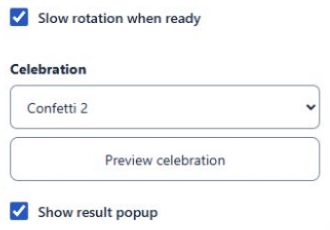
Choose Confetti 1, Confetti 2, Fireworks, Stars, Color burst or Off. New wheels use Confetti 2. Celebration is independent of sound.
Preview celebration makes no pick. Stop preview, changing the effect, resizing the window or closing Customize ends it. With Off or reduced motion selected, no celebration preview plays.
Set spin duration and speed
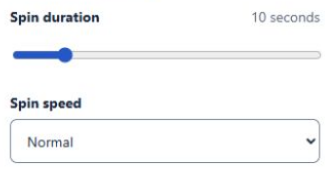
Duration sets the total time from 1 to 60 seconds. Slow, Normal and Fast change the turning pace within that time. New wheels use 10 seconds and Normal speed.
Use idle rotation or reduced motion
Slow rotation when ready turns the idle wheel silently without making a pick. It starts on for new wheels and stops when you spin.
Your device or browser’s reduced-motion preference skips spin animation, idle rotation, spin sounds and celebrations. It does not mute winner audio.
Run automatic spins
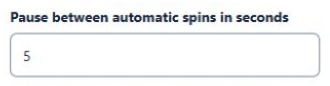
Set a pause of 2 to 60 seconds, then select Start auto-spin. The default pause is five seconds.
Open dialogs pause the next spin. Close the result popup each time, or turn Show result popup off. Stop auto-spin can interrupt a spin in progress. Escape or hiding the page stops further automatic spins while the current spin finishes. Reloading stops the sequence. It also stops when no entries remain and stays off after a reload.
Show the wheel full screen
Full screen hides the header, editor and guide. Press Escape to return. If unsupported, use the normal view.

Save or share your wheel of names
You can keep your wheel of names without creating an account. Save, Download and Share keep different parts of your wheel, so choose the one that fits what you want to do next.
| Action | What it does | What it keeps | Keep in mind |
|---|---|---|---|
| Save | Use this setup again in the same browser. | Your entries, settings, uploaded media and current round. | Open brings back a saved wheel. Saved wheels do not sync to other browsers or devices. |
| Download | Keep a backup or move the wheel to another device. | A wheel file with entries, settings, uploaded images and audio, and the current round. | Use the Download icon beside Full screen. Import the file through Open. Undo history is not included. |
| Share link | Open the entries and settings as a fresh round. | Entry text, colors, weights and wheel settings. | Links leave out uploaded images, audio, Results and round removals. My audio changes to Click while spinning and Applause after a pick. |
Share links open a fresh setup on another device and leave out uploaded images, audio and Results. Download a wheel file when you need its media or current round. Keep a backup before clearing browser data, and review entries before sharing a file or link.
Start a new wheel or save a named setup
New starts an empty names wheel with default settings. Undo restores the previous setup. Named saved wheels remain.
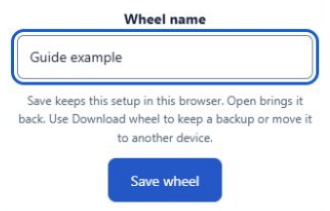
Save accepts a name up to 60 characters. Keep up to 20 named wheels in this browser. Reusing a name asks to replace it. Save again to include later changes in that named copy.
Open, import or delete a saved wheel
Open lists saved wheels, newest saved first. Select a name to load it. Older saved lists, when present, contain text only. Undo reverses opening a wheel on the same tool. If Open has no saved wheels, save this setup or import a wheel file.
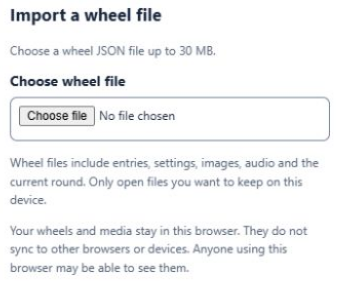
Import a wheel JSON file from this app, then Save to add it to the named library. Imports and downloads are limited to 30 MB. Remove some media if a file is too large. If a file is invalid or has missing media, use an intact file downloaded from this app rather than a plain text list.
Delete removes the named saved copy after confirmation, leaving the current wheel open.

Create or open a share link
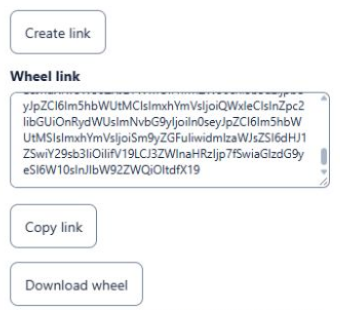
Choose Create link, then Copy link. Copy the displayed text manually if automatic copying fails. At least one included entry is needed. If the link is too large, use Download wheel.
A wheel link asks you to Open shared wheel or Cancel. Opening starts a fresh round and keeps your named saves. Unchecked Include rows stay unchecked. Undo restores the previous wheel on the same tool. If the link is invalid, ask for a new complete link or a downloaded wheel file.
Embed a wheel of names
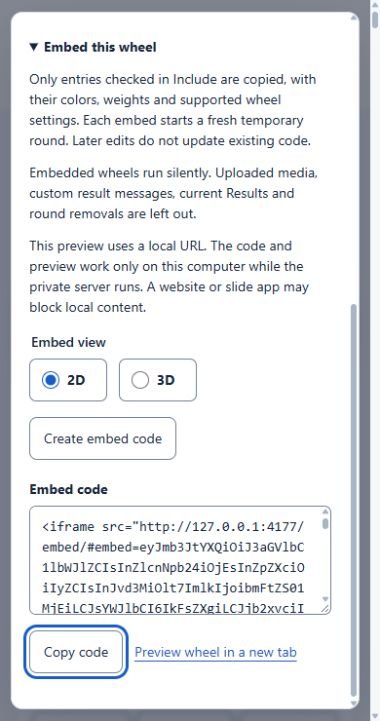
Open Share link, expand Embed this wheel and choose 2D or 3D for the embed. Select Create embed code, then Copy code. Paste it into a site editor that accepts HTML iframes. If copying is blocked, select and copy the displayed code manually. Preview wheel opens the dedicated view in another tab.
Only entries checked in Include are copied, with their colors, weights and supported settings. The embed starts a fresh temporary round, ignoring past picks and round removals. It runs silently, without uploaded media or custom result messages. It does not read or change saved wheels. Later edits do not update existing code; create new code after changing the wheel.
The copied URL uses this public site. A website or slide app may block embedded content. Reloading or selecting New round resets only that embed. Use New round when entries run out or the 2,000-pick limit is reached.
For PowerPoint or Google Slides, open Preview wheel, copy its address and add it to slide text using Insert then Link. Test the link before presenting. Slides.com’s iframe blocks require HTTPS and framing permission.
Reset all saved data
Open Customize and go to Saved data at the bottom. Select Reset all saved data to review what will be deleted. Cancel keeps your data.
Confirming deletes saved wheels and lists, entries, uploaded images and audio, settings and results from this browser. All four tools return to their default choices and settings. This cannot be undone. Download any wheels you want to keep first.
Wait for the completion message before assuming the reset finished. If deletion fails, some saved data may remain. Follow the error message and try again; Cancel does not restore data already deleted.

Keep a backup when browser storage is unavailable
The working setup is kept locally when browser storage is available. A named Save is a separate copy. Neither syncs to the cloud. If saving fails, download a copy and check that it opens. Changes in another tab of this browser can update the same wheel here. Download a copy before working on separate versions.
Move saved wheels to WheelySuite
Wheels saved on wheel-of-names.net do not appear here automatically. Use the same device, browser and profile where you saved them.
Download a wheel file there. Open the matching tool on WheelySuite, choose Open and import the file.
Random name picker questions
Is the wheel of names completely random?
The wheel makes a random pick from the entries currently included in the draw, using your browser’s cryptographic random number source. Equal weights give each eligible entry an equal chance. Different weights or repeated entries change those chances. The winner is selected before the animation starts. A short run can still contain repeats or uneven results.
Does every person have an equal chance of winning?
For an equal-chance draw, give each person one eligible entry and use the same weight for every entry. Repeated names or different weights can change a person’s combined chance. In Advanced, check Include and Weight for every row. Equal chances resets weights to 1 but does not remove duplicate names or recheck excluded rows.
Why did the same name win twice?
A name that stays eligible can be picked again, including on the next spin. Previous results do not make it less likely when the entries and weights stay the same. Turn on Remove each winner after picking to exclude picked entries. If a name appears on several rows, another row with that name can still win.
Can I pick several winners without repeats?
Yes, one winner per spin. Turn on Remove each winner after picking, then keep spinning until you have enough winners. Results records the picks. Use one entry per person if each person should win only once. New round restores entries removed during the round, while rows unchecked in Advanced stay excluded.
Does spin duration or speed affect who wins?
No. Duration and Speed control the animation. The random draw happens first, and the wheel turns to the selected segment. Changing colors, images, sounds or celebrations also leaves the selection chances unchanged.
Do I need to shuffle before spinning?
No. Shuffle randomly rearranges the entries, but spinning already makes a random pick. Each eligible entry’s chance depends on its weight, not its position in the list. Shuffle also starts a new round, clearing the current results and round removals.
Why is an entry unavailable for the next spin?
Check whether Include is unchecked in Advanced, the entry was removed after a pick, or Remove each winner after picking is excluding it. Remove duplicates can also combine matching entries. New round clears round removals, but it does not recheck Include or turn off duplicate merging.
How many names can I put on the wheel?
You can enter up to 500 names or choices, with up to 80 characters per entry. The 500-entry limit applies before duplicate entries are merged.
Can I paste a list from Excel or Google Sheets?
Yes. Copy one column and paste it into Entries so each name is on its own line. Blank lines are ignored. This copies the list into the wheel. It does not create a live connection to the spreadsheet.
Why are some names shortened or missing on the wheel?
Long labels are shortened to fit their segments, and very narrow segments do not display a label. The entry can still be picked. Its full text remains in Entries and is shown in Results after a pick.
Is this a random name generator?
Spin selects from the entries already on the wheel. Generate a list can suggest draft entries from a topic when generation is connected. Review the draft before adding or replacing entries. It does not automatically divide your existing list into teams.
Do I need an account to save my wheel?
No. The working wheel is kept in this browser when storage is available. Save creates a named copy you can reopen later in the same browser. Clearing the site’s browser data can erase both. Download a wheel file if you need a backup or want to move it to another browser.